 Shotoshot
BEYOND WINDOWS SNIPPING TOOL
A Snipping Tool alternative
that stays editable.
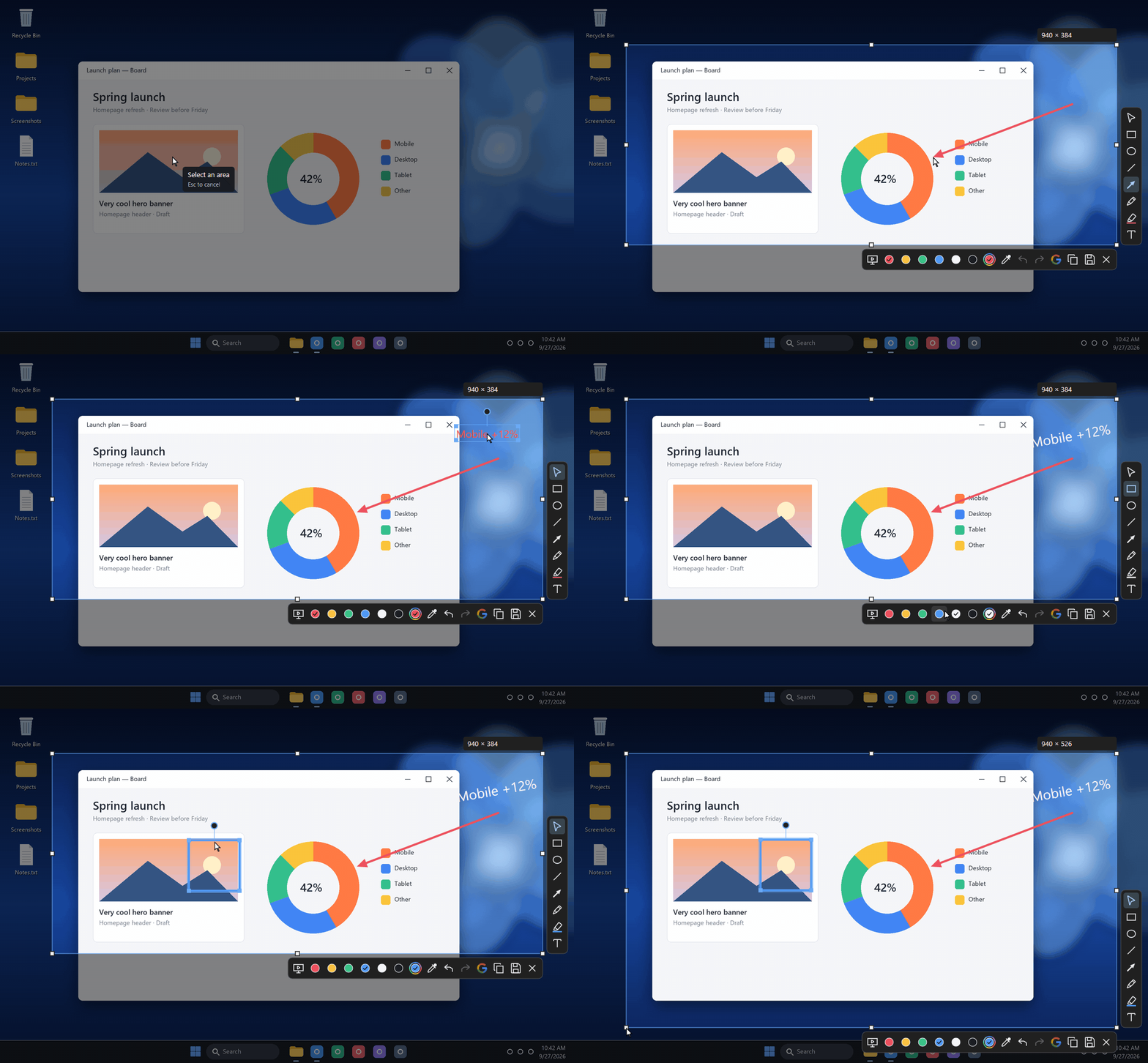
Windows Snipping Tool is excellent for a quick crop. Shotoshot is for the moment after that: point at a detail, move the arrow when the layout changes, fix the text, match a color, then copy or save.
Windows 11 · No account · No admin rights needed
When the built-in tool is enough
Keep using Snipping Tool when you only need a fast crop, a simple mark or screen recording. It is built into Windows and handles those jobs well. Shotoshot is a focused alternative when annotation and live explanation matter more than recording.
What Shotoshot adds
- Editable annotationsMove, resize, rotate and recolor arrows, boxes, circles and text before copying.
- Arrows that stay attachedSnap an arrow to a shape; it follows when that shape moves or changes size.
- Reframe after captureResize the selected area without rebuilding the annotations around it.
- Exact colorsPick any pixel with the eyedropper and copy its hex value in one click.
- One-key instant captureSave the active screen straight to the Desktop without opening the editor.
- Live screen drawingDraw temporary arrows and shapes over an app while you teach, stream or present.
A familiar capture workflow
- Press your capture shortcut. Use Print Screen or choose any key or key combination.
- Drag over the area. The annotation tools appear beside the selection.
- Copy or save. Ctrl+C copies a clean image; Ctrl+S saves a PNG.
Shotoshot stays in the Windows tray, ready for the next capture. There is no account and no telemetry.
Your screenshots stay local
Capturing, editing, copying and saving happen on your PC. Shotoshot has no automatic upload and no share-link service. Google Lens is the single feature that sends an image, and only after you explicitly ask it to search the selected area.
Good to know
Is Shotoshot free?
Yes. It is a free independent project. Optional support helps fund future releases.
Does it replace screen recording?
No. Shotoshot captures still images and draws over your live screen; use Snipping Tool, OBS or another recorder when you need video.
Can both tools stay installed?
Yes. Give each tool a different shortcut, or let Shotoshot use Print Screen when the other app is closed.